Automation (Preview)
With the SSRS Reports Migration Wizard (SRMW) command-line utility, you can automate routine migrations in a few clicks. The migration script can be integrated with any scheduler or CI/CD tool.
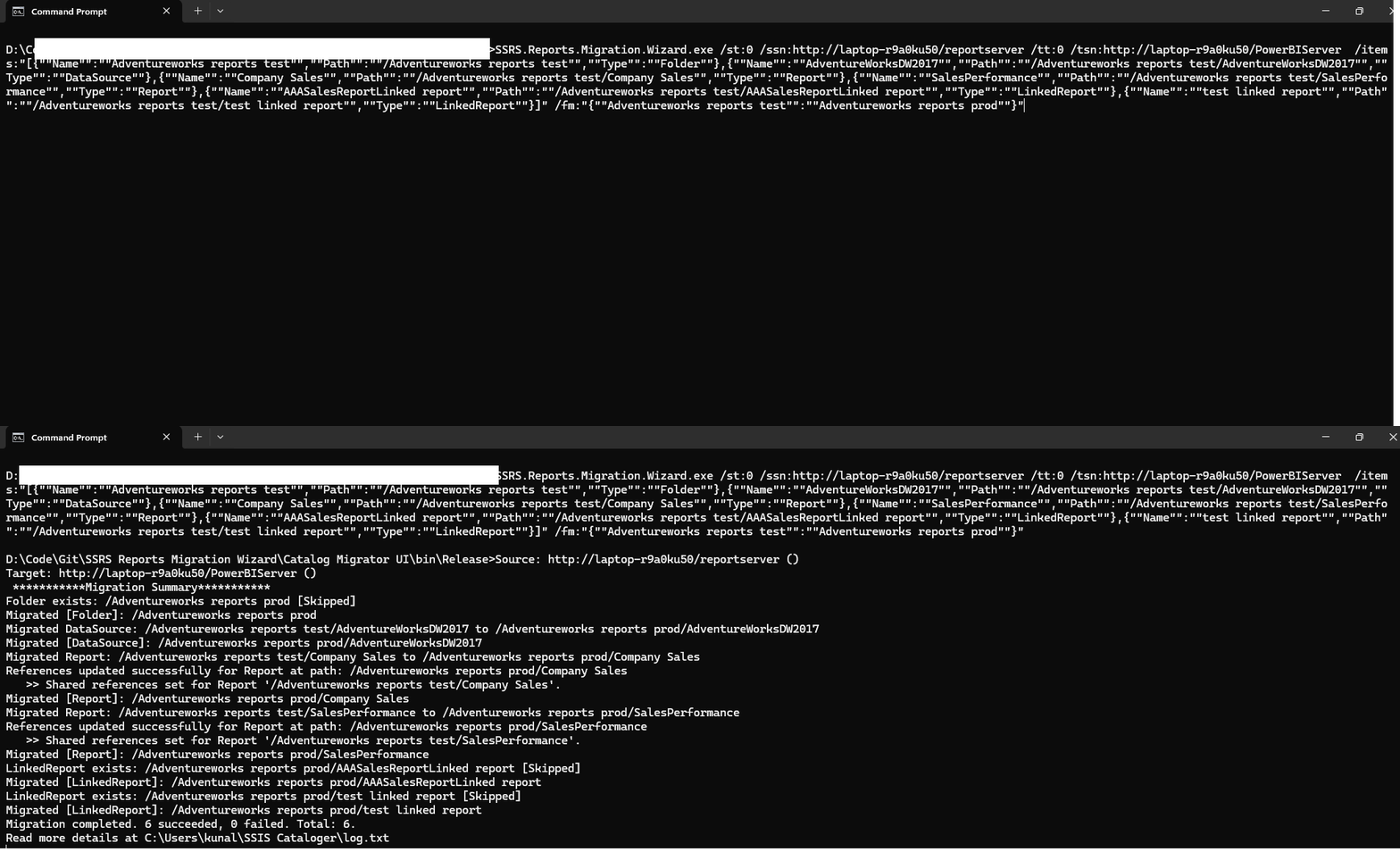
Generate Scripts from the Wizard UI
The easiest way to get started with command-line automation is to use the Script button on the Review and Confirm screen of the wizard. It automatically generates a ready-to-run command-line script based on your current wizard selections — no manual parameter writing required.
- Click Script → Copy to Clipboard to paste directly into a terminal or scheduler.
- Click Script → Save to File to save as a
.batfile for scheduled or repeated use.
The generated script can then be scheduled using Windows Task Scheduler or integrated into a CI/CD pipeline. See Getting Started → Review and Confirm for details.
Before You Begin
Before running the command-line utility, you need to make the executable accessible from any command prompt location. You can do this in one of two ways:
Option 1 — Add to Windows Environment Variables (Recommended)
- Open Windows Start and search for “Environment Variables”
- Click “Edit the system environment variables”
- Click “Environment Variables…“
- Under System variables, select Path and click “Edit…“
- Click “New” and paste the full folder path where
SSRS.Reports.Migration.Wizard.exeis installed. e.g.C:\Program Files\AzureOps\SSRS Reports Migration Wizard - Click OK on all dialogs
- Open a new command prompt and run:
SSRS.Reports.Migration.Wizard.exe /?
If the executable is found, you are ready to run migrations from any directory.
Option 2 — Use the full path in your command
If you prefer not to modify environment variables, prefix every command with the full path to the executable:
"C:\Program Files\AzureOps\SSRS Reports Migration Wizard\SSRS.Reports.Migration.Wizard.exe" /st:0 /ssn:http://SourceServer/ReportServer /tt:0 /tsn:http://TargetServer/ReportServer
If the installation path contains spaces, always wrap it in double quotes as shown above.
Parameters
SSRS.Reports.Migration.Wizard.exe initiates the migration using the parameters specified on the command line.
Below is a table summarizing the parameters for the command-line utility.
| Parameter | Usage | Description |
|---|---|---|
| st | Mandatory | Source type. 0 = SSRS / Power BI Report Server, 1 = SRMW file. |
| ssn | Mandatory when st = 0 | Source report server URL. e.g. http://servername/ReportServer |
| su | Optional when st = 0 | Source username. Supports DOMAIN\username, username@domain.com, or plain username format. When not specified, Windows authentication is used. |
| sp | Optional when st = 0 | Source password. Required when su is specified. |
| tt | Mandatory | Target type. 0 = SSRS / Power BI Report Server, 1 = SRMW file. |
| tsn | Mandatory when tt = 0 | Target report server URL. e.g. http://servername/ReportServer |
| tu | Optional when tt = 0 | Target username. Supports DOMAIN\username, username@domain.com, or plain username format. When not specified, Windows authentication is used. |
| tp | Optional when tt = 0 | Target password. Required when tu is specified. |
| srmwfp | Mandatory when st or tt = 1 | Full path of the SRMW file. e.g. D:\Exports\backup.srmw |
| items | Optional | Specify SSRS items to migrate in JSON format. See usage examples below. When not specified, the entire catalog from the source will be migrated to the target. |
| fm | Optional | Source to target folder mapping in JSON format. e.g. {"Source Folder":"Target Folder"}. When specified, items in the source folder will be migrated to the mapped target folder name on the target. Folder renaming is applied automatically when this parameter is provided. |
| ms | Optional | Migrate subscriptions. Possible values are true and false. Default is false. When set to true, report subscriptions and shared schedules will be migrated to the target. |
| mr | Optional | Migrate roles. Possible values are true and false. Default is false. When set to true, item-level role assignments will be migrated to the target. |
| mp | Optional | Migrate report parameters and defaults. Possible values are true and false. Default is false. When set to true, report parameter default values will be applied on the target after migration. |
| lfd | Optional | Log file directory. Used to record execution logs and errors during migration. When not specified, the application will write the log at the user’s default location. |
Limitations
Data Source Credentials
The command-line utility migrates data source definitions as-is from the source server. It does not support interactively reviewing or updating data source connection strings or credentials during migration, unlike the wizard UI which provides a Update Data Source Connections step.
As a result, if the target server uses different credentials or connection strings than the source, migrated reports may fail to execute until the data sources are manually reconfigured on the target.
Recommended approach before running /ms:true:
- Run the migration once without
/ms:trueto migrate all items and data sources first. - Log into the target report server and verify all data sources are correctly configured and can connect successfully.
- Re-run the migration with
/ms:trueto transfer subscriptions once data sources are confirmed working.
Subscriptions that reference a data source with missing or incorrect credentials will fail to execute on the target server even if the subscription itself is transferred successfully.
Subscription Credentials
Subscription delivery credentials (e.g. file share username and password for file delivery subscriptions) are not stored in the SSRS catalog and therefore cannot be exported or migrated automatically. After migration, file share and email delivery subscriptions may need their delivery credentials re-entered manually on the target server.
Items parameter format
The items parameter accepts a JSON array. Each object must include Name, Path, and Type.
Supported Type values: Folder, Report, LinkedReport, DataSource, DataSet.
Important: Always include the parent folder of any item in the list. If the parent folder does not exist on the target server, all items inside it will fail to migrate.
[
  { "Name": "Sales", "Path": "/Sales", "Type": "Folder" },
  { "Name": "AdventureWorks", "Path": "/Sales/AdventureWorks", "Type": "DataSource" },
  { "Name": "Company Sales", "Path": "/Sales/Company Sales", "Type": "Report" },
  { "Name": "Sales Summary", "Path": "/Sales/Sales Summary", "Type": "LinkedReport" }
]
Usage examples
The quickest way to get a valid command-line script is to run the wizard once and click Script → Copy to Clipboard on the Review and Confirm screen. This generates the correct syntax automatically based on your selections.
If you prefer to write scripts manually, add the folder path of SSRS.Reports.Migration.Wizard.exe to the Windows system environment variable Path, or specify the full path of the executable in each command. See Before You Begin for setup instructions.
Migrate the entire SSRS catalog from one report server to another using Windows authentication.
SSRS.Reports.Migration.Wizard.exe /st:0 /ssn:http://SourceServer/ReportServer /tt:0 /tsn:http://TargetServer/ReportServer
Migrate the entire SSRS catalog from one report server to another including subscriptions, roles, and parameters, with logs written to a custom directory.
SSRS.Reports.Migration.Wizard.exe /st:0 /ssn:http://SourceServer/ReportServer /tt:0 /tsn:http://TargetServer/ReportServer /ms:true /mr:true /mp:true /lfd:"D:\Logs"
Migrate the entire SSRS catalog using explicit credentials.
SSRS.Reports.Migration.Wizard.exe /st:0 /ssn:http://SourceServer/ReportServer /su:DOMAIN\username /sp:MyPassword /tt:0 /tsn:http://TargetServer/ReportServer /tu:DOMAIN\username /tp:MyPassword /ms:true /mr:true /mp:true /lfd:"D:\Logs"
Migrate the entire SSRS catalog using UPN format credentials.
SSRS.Reports.Migration.Wizard.exe /st:0 /ssn:http://SourceServer/ReportServer /su:kunal@contoso.com /sp:MyPassword /tt:0 /tsn:http://TargetServer/ReportServer /tu:kunal@contoso.com /tp:MyPassword
Export the entire SSRS catalog from a report server to an SRMW file for backup or offline transfer.
SSRS.Reports.Migration.Wizard.exe /st:0 /ssn:http://SourceServer/ReportServer /tt:1 /srmwfp:"D:\Backups\SSRSBackup.srmw" /lfd:"D:\Logs"
Import an SRMW file to a target report server with all options enabled.
SSRS.Reports.Migration.Wizard.exe /st:1 /srmwfp:"D:\Backups\SSRSBackup.srmw" /tt:0 /tsn:http://TargetServer/ReportServer /ms:true /mr:true /mp:true /lfd:"D:\Logs"
Migrate from SSRS to Power BI Report Server.
SSRS.Reports.Migration.Wizard.exe /st:0 /ssn:http://SourceServer/ReportServer /tt:0 /tsn:http://PBIServer/PowerBIReportServer /ms:true /mr:true /mp:true /lfd:"D:\Logs"
Migrate specific items by specifying them explicitly. Always include the parent folder.
SSRS.Reports.Migration.Wizard.exe /st:0 /ssn:http://SourceServer/ReportServer /tt:0 /tsn:http://TargetServer/ReportServer /items:"[{""Name"":""Finance"",""Path"":""/Finance"",""Type"":""Folder""},{""Name"":""FinanceDB"",""Path"":""/Finance/FinanceDB"",""Type"":""DataSource""},{""Name"":""Revenue Report"",""Path"":""/Finance/Revenue Report"",""Type"":""Report""},{""Name"":""Revenue Summary"",""Path"":""/Finance/Revenue Summary"",""Type"":""LinkedReport""}]" /ms:true /mp:true /lfd:"D:\Logs"
Migrate all items and rename a folder on the target server. Specifying /fm is sufficient — folder renaming is applied automatically.
SSRS.Reports.Migration.Wizard.exe /st:0 /ssn:http://SourceServer/ReportServer /tt:0 /tsn:http://TargetServer/ReportServer /fm:"{""Sales Staging"":""Sales Production""}" /lfd:"D:\Logs"
Schedule a nightly migration using Windows Task Scheduler by saving the command in a .bat file.
@echo off
SSRS.Reports.Migration.Wizard.exe /st:0 /ssn:http://SourceServer/ReportServer /tt:0 /tsn:http://TargetServer/ReportServer /ms:true /mr:true /mp:true /lfd:"D:\Logs\Nightly"
Save as nightly_migration.bat and configure Windows Task Scheduler to run it on your desired schedule.
Exit codes
| Code | Meaning |
|---|---|
| 0 | Success |
| -1 | Failure |
| -2 | Fatal error during initialisation |
Security Note: Avoid passing passwords directly as command-line arguments (
/sp,/tp) as they may be visible in process listings and shell history. Where possible, use Windows Authentication by omitting/su//spentirely, or store passwords in environment variables and reference them in your script.